If you are working with Power BI, you probably already know how powerful Slicer filters are. The ability to add a Slicer and have it automatically filter everything on the report can be great! But, what about instances where you do not want the Slicer to filter all your tiles? Instead, you want the Slicer to filter only some of your tiles. How can you control your Slicers? Fortunately, as you will learn in this tip, managing Slicer filters in Power BI is exceptionally easy.
Limiting A Slicer's Reach
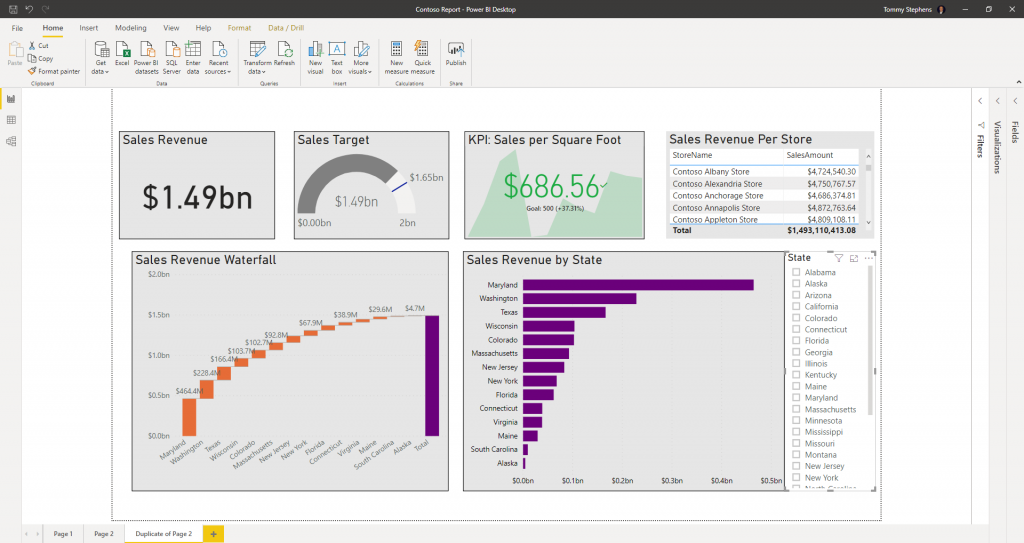
Consider the Power BI report shown in Figure 1. In this report, the “State” Slicer in the lower, right corner filters all six tiles by default. However, what if we wanted the Slicer to affect only the four tiles at the top of the report? What could we do to limit the Slicer’s reach?
Figure 1 - Sample Power BI Report With A Slicer
The answer is simple. Once you add a Slicer, click on the Slicer to select it. Next, click the Format tab on the Ribbon. Then, click Edit Interactions, and upon doing so, you will see that each tile on the report will have two icons appear in the upper, right corner. For each of the tiles you do not want to filter with the Slicer, click the icon on the right side labeled None. Doing so will disconnect the Slicer from that tile. Once you complete this process, click EditInteractions again to apply your changes.
Summary
Slicers are great tools for filtering your Power BI-based reports and dashboards quickly, easily, and intuitively. However, you may not want your Slicer to affect all the tiles on a page. In these cases, as you have just learned, you can easily disconnect a Slicer from a tile using Power BI’s Edit Interactions feature.
If you want to give Power BI a try and have not yet downloaded the free Power BI Desktop application, visit https://www.powerbi.com. The application is free to all users.
We use cookies to ensure that we give you the best experience on our website. Continuing to use this website acknowledges your consent to our privacy policy.